Single Sign-On & Provisioning#
This guide will walk you through connecting your identity provider (IdP) to OrcaApp so your organization signs in with SAML SSO and members are kept in sync via SCIM. By the end you will have configured a SAML application in your IdP, optionally enforced SSO for your organization, and set up SCIM to provision users automatically.
OrcaApp keeps authentication and membership as separate concerns:
- Authentication decides who you are. OrcaApp supports four login methods: Google OAuth, Microsoft OAuth, GitHub OAuth, and SAML SSO. The OAuth providers work out of the box for any work email. SAML SSO is configured per organization and is the right choice when you want centralized control through Okta, Entra ID (Azure AD), Google Workspace, or any other SAML 2.0 IdP.
- Membership decides which users belong to your organization and what role they have. New members join through one of three paths: an emailed invite, an open join via matching email domain, or SCIM provisioning from your IdP.
Logging in with SAML never grants membership on its own. The user must already be a member of your organization (or be eligible to sign up via invite, matching-domain join, or SCIM) before SAML SSO will let them in. Both SAML and SCIM are configured per organization by an owner.
Prerequisites
Your organization must have an email domain set (e.g. acme.com) before you can configure SAML or SCIM. Email domains can only be set or changed by Orca support — contact us if yours isn’t set yet or needs to change. The email domain pins the per-org ACS URL and is the key SCIM uses to validate provisioned users.
Configure SAML SSO#
SAML configuration is a two-sided handshake. You paste two values from your IdP into OrcaApp, and two values from OrcaApp into your IdP.
Create the SAML application#
In your IdP, create a new SAML 2.0 application for OrcaApp. The exact UI varies by provider, but you will need to configure:
- ACS URL (also called Single sign-on URL, Reply URL, or Assertion Consumer Service):
https://app.orcadb.ai/login/saml?domain=<your-email-domain> - Audience URI (also called SP Entity ID or Identifier):
https://app.orcadb.ai - Name ID format:
EmailAddress - Subject (Okta: Application username; Entra ID: User Identifier claim): the user’s email
- Default RelayState: leave empty
- Attribute statements (optional):
firstName/lastName(orgivenName/surname) anddisplayName
You will see the exact ACS URL and Audience URI to copy in the next step, alongside the fields for the IdP values.
Okta specifics
If you’re using Okta, the IdP-side values OrcaApp needs (Sign on URL, Signing Certificate) live on the application’s Sign On tab, behind View SAML setup instructions. Copy the Identity Provider Single Sign-On URL and X.509 Certificate from that page into OrcaApp’s dialog in the next step.
Configure SAML in the OrcaApp#
Navigate to the Organization Tab, open organization settings, and click Configure next to Single Sign-On.
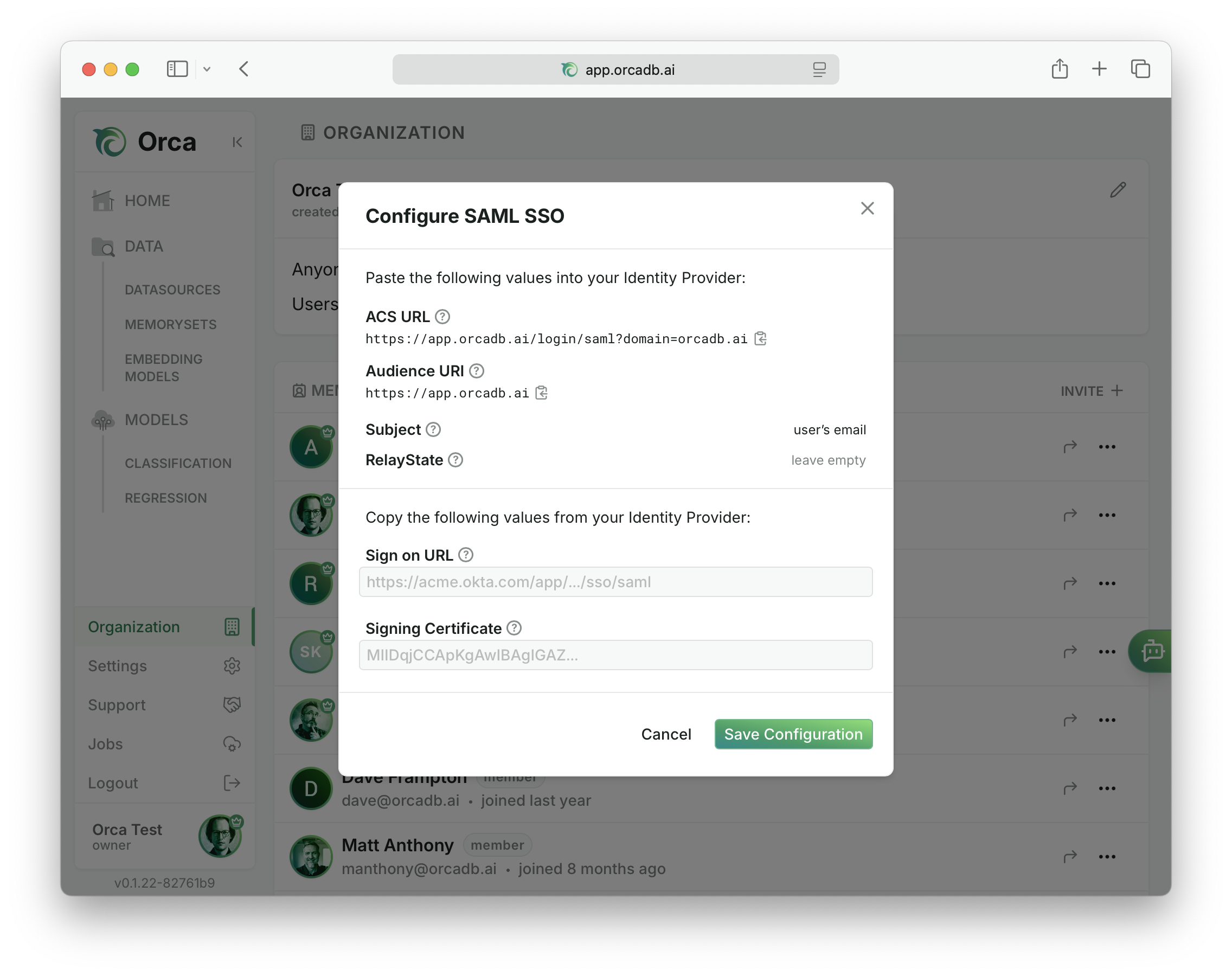
Fill in the fields with values from your IdP:
- Sign on URL: the IdP’s SSO endpoint (e.g.
https://acme.okta.com/app/.../sso/saml) - Signing Certificate: the IdP’s X.509 public signing certificate. You can paste it with or without the
-----BEGIN CERTIFICATE-----lines.
Then copy the ACS URL and Audience URI shown in the dialog back into your IdP application.
Click Save Configuration. OrcaApp validates the certificate format, persists the config, and shows a copyable SSO Login URL that you can bookmark or share with your team. The login URL has the form https://app.orcadb.ai/login?domain=<your-email-domain> and pre-selects the SSO option on the login page.
Test the SSO flow#
Before logging in, assign the test user to the SAML application in your IdP. Most IdPs (Okta included) reject SSO requests from users who haven’t been explicitly assigned to the app, even if SAML is configured correctly on both sides. In Okta, this is on the application’s Assignments tab.
Then open the SSO Login URL in a private window as a user who is already a member of your organization (or who has a pending invite, or whose email domain is set to auto-join) and complete a login. The IdP authenticates the user and OrcaApp uses the email in the SAML assertion to look up the matching account.
If no OrcaApp user exists for that email and the email isn’t eligible to sign up, the login fails. SAML does not create users or memberships — add them ahead of time via SCIM, an invite, or matching-domain auto-join.
OrcaApp accepts both SP-initiated flows (user starts at OrcaApp, gets redirected to the IdP) and IdP-initiated flows (user clicks the OrcaApp tile in the IdP dashboard).
Troubleshooting
If the IdP redirects back with an error, common causes are:
- The user isn’t assigned to the SAML application in the IdP.
- The ACS URL in the IdP doesn’t match the one OrcaApp shows. The
domainquery parameter is required and must match your org’s email domain exactly. - The signing certificate in OrcaApp is from a different IdP application than the one the user logged in to.
- The SAML assertion is missing an email claim. Add an
email(ormail) attribute mapping in the IdP.
Enforce SSO#
Once SAML is configured, you can require all members of your organization to log in via SSO. In organization settings, toggle Restrict login to Single Sign-On for this organization and save.
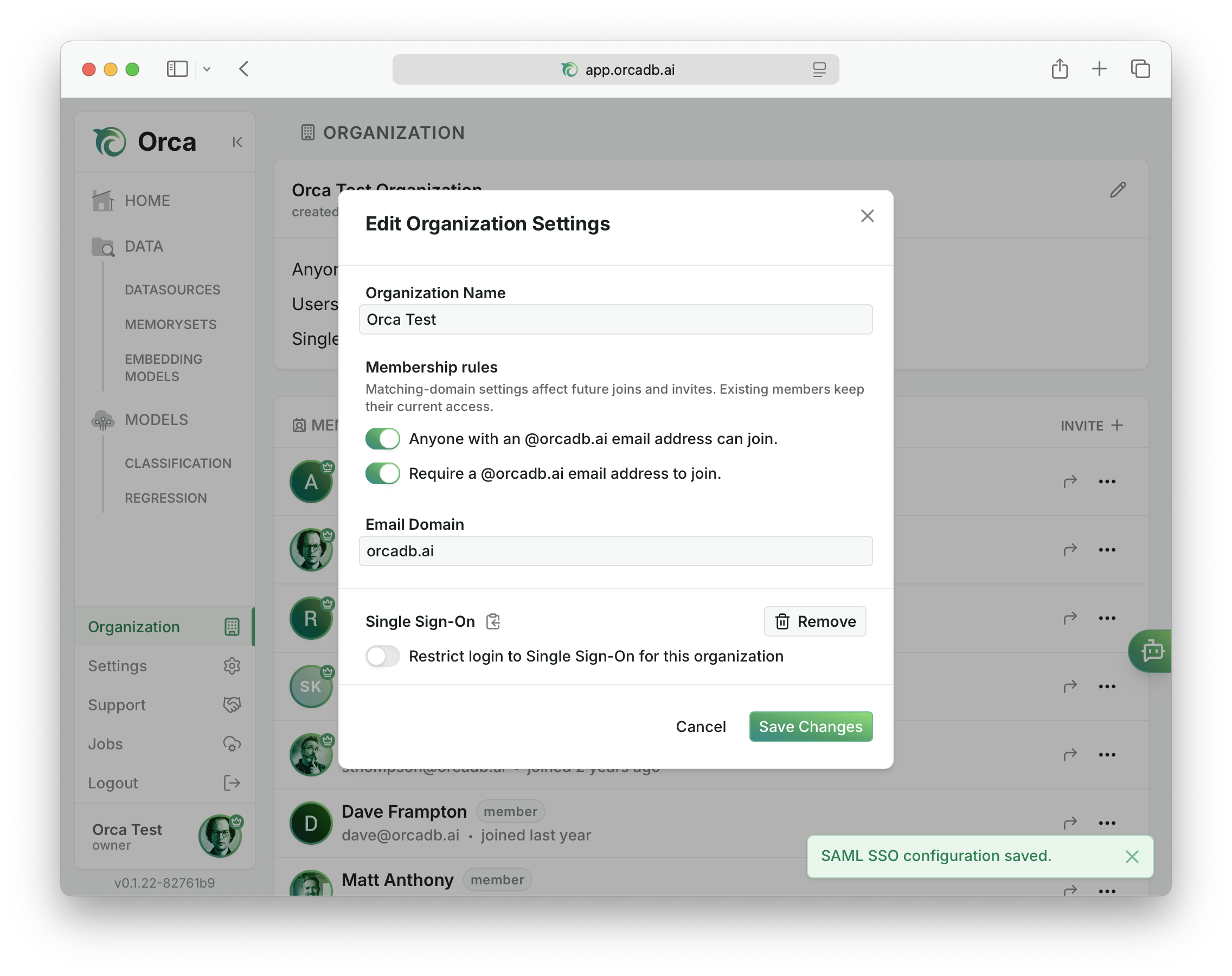
When SSO is enforced, OrcaApp blocks all OAuth logins (Google, Microsoft, GitHub) for any email matching your organization’s domain and redirects them through SAML instead. Owners can disable enforcement at any time. You cannot enable enforcement without a working SAML configuration, and you cannot remove the SAML configuration while enforcement is on. This prevents accidental lockout.
Remove the SAML configuration#
To disconnect SAML, click Remove next to Single Sign-On. SSO enforcement must be disabled first — otherwise the org would be left with enforcement on and no working SSO.
Provision Users with SCIM#
SCIM (System for Cross-domain Identity Management) lets your IdP create, update, and deactivate OrcaApp memberships automatically when you assign or unassign users in the IdP. OrcaApp implements SCIM 2.0 (RFC 7644) for the User resource.
Create a SCIM API key#
SCIM authentication uses a bearer token. Create one from the
Organization Tab under API Keys. Click Create, give the key a descriptive name (e.g. okta-scim), and select the SCIM scope. Copy the key immediately — this is the only time it’s shown. See Manage API Keys for general API key handling.
SCIM scope
SCIM-scoped keys can only call /scim/v2/* endpoints and only act on users in the org that issued them. They cannot read memorysets, models, or any other Orca resources.
Configure SCIM in your IdP#
In your IdP’s provisioning settings for the OrcaApp application, set:
- Base URL (also called SCIM connector base URL):
https://app.orcadb.ai/scim/v2 - Authentication mode: HTTP Header / Bearer Token
- Bearer token: the SCIM API key you just created
- Unique identifier field for users:
userName
Enable the actions your IdP offers. OrcaApp supports:
- Create users — provisions a new member when assigned
- Update user attributes — syncs name, profile photo, and external ID
- Deactivate users — soft-deletes the membership (sets
active=false) and expires all of that user’s sessions
Most IdPs let you “test the connector” at this point. The IdP will hit GET /scim/v2/ServiceProviderConfig and GET /scim/v2/Schemas to discover capabilities. A successful test confirms the bearer token and base URL are correct.
Okta specifics
In Okta, these settings live on the OrcaApp application’s Provisioning tab. Click Configure API Integration, check Enable API integration, paste the SCIM API key as the API Token, and click Test API Credentials. Then under Provisioning → To App, enable Create Users, Update User Attributes, and Deactivate Users.
Attribute mapping#
OrcaApp reads a small set of SCIM attributes. Map them in your IdP as follows:
| SCIM attribute | OrcaApp field | Notes |
|---|---|---|
userName |
email |
Must be an email address whose domain matches the org’s email domain. Immutable after creation. |
displayName or name.formatted |
display name | If both are sent, displayName wins. Otherwise givenName + familyName are joined. |
externalId |
externalId |
Opaque IdP identifier. Stored for reconciliation; not displayed. |
photos[?primary=true].value |
profile image URL | Only the entry with primary=true is persisted. |
active |
membership active flag | false deactivates the membership and ends all sessions. |
emails, other attributes |
ignored | Sent attributes outside this list are silently dropped. |
Email domain enforcement
The userName (email) of every provisioned user must match your organization’s email domain. SCIM POST and PUT requests with a non-matching domain are rejected with a 400 invalidValue error. Set the email domain to cover every user you plan to provision before enabling provisioning in your IdP.
What happens on each operation#
| IdP action | SCIM call | Effect in OrcaApp |
|---|---|---|
| Assign user to app | POST /Users |
Creates the user if new; adds them as a member of the org. If the email already belongs to an existing OrcaApp user, links the existing user to the org instead. |
| Update profile | PATCH /Users/:id or PUT /Users/:id |
Updates name, photo, and externalId. userName/email cannot be changed. |
| Unassign user / deactivate | DELETE /Users/:id or PATCH active=false |
Soft-deletes the membership. The user record is preserved for audit; all sessions for that org are expired immediately. |
| Reactivate | PATCH active=true |
Restores the membership. Owners cannot reactivate a SCIM-managed member through the OrcaApp UI; reassign them in the IdP instead. |
Provisioned members always join with the member role. To grant owner, an existing owner promotes them from the Organization Tab. The IdP cannot manage roles.
Limitations#
- Users only. Group provisioning (
/Groups) is not supported. Manage roles in OrcaApp. - Filter support is minimal. Only
userName eq "<email>"filters are honored onGET /Users. - Names are stored as a single string. OrcaApp accepts
givenName/familyNameon input but only returnsname.formattedin responses. Don’t expect round-tripping of structured names. - No password sync. Authentication always goes through the IdP via SAML or OAuth. SCIM never touches credentials.